Command Line Interface (CLI)
Strapi comes with a full featured Command Line Interface (CLI) which lets you scaffold and manage your project in seconds. The CLI works with both the yarn and npm package managers.
Interactive commands such as strapi admin:create-user don't display prompts with npm. Please consider using the yarn package manager.
It is recommended to install Strapi locally only, which requires prefixing all of the following strapi commands with the package manager used for the project setup (e.g npm run strapi help or yarn strapi help) or a dedicated node package executor (e.g. npx strapi help).
To pass options with npm use the syntax: npm run strapi <command> -- --<option>.
To pass options with yarn use the syntax: yarn strapi <command> --<option>
ℹ️ Strapi v4 CLI commands removed from Strapi 5:
The strapi install, strapi uninstall, strapi new, and strapi watch-admin commands from Strapi v4 have been removed in Strapi 5:
| Strapi v4 command | Strapi 5 equivalent |
|---|---|
strapi install [plugin] | Use the npx command corresponding to the plugin (found on the Marketplace, see Marketplace) |
strapi new | Use the equivalent yarn or npx command to create a new Strapi project (see CLI installation guide) |
strapi watch-admin | yarn develop or npm run develop always starts the Strapi server in "watch-admin" mode. To disable this in Strapi 5, run yarn develop --no-watch-admin or npm run develop --no-watch-admin. |
strapi develop
Alias: dev
Start a Strapi application with auto-reloading enabled.
Strapi modifies/creates files at runtime and needs to restart when new files are created. To achieve this, strapi develop adds a file watcher and restarts the application when necessary.
Strapi also adds middlewares to support HMR (Hot Module Replacement) for the administration panel. This allows you to customize the administration panel without having to restart the application or run a separate server.
strapi develop
options: [--bundler | --open | --no-watch-admin | --no-build-admin | --polling | --debug | --silent]
- strapi develop --bundler [bundler]
Selects the bundler for the admin panel build (viteorwebpack). - strapi develop --open
Starts your application with auto-reloading enabled & open your default browser with the administration panel running. - strapi develop --no-watch-admin
Prevents the server from auto-reload when changes are made to the admin panel code. - strapi develop --no-build-admin
Prevents the admin panel from being built when--no-watch-adminis enabled. - strapi develop --polling
Watches for file changes in network directories. - strapi develop --debug
Enables debugging mode with verbose logs. - strapi develop --silent
Suppresses logs.
You should never use this command to run a Strapi application in production.
strapi start
Start a Strapi application with auto-reloading disabled.
This command is to run a Strapi application without restarts and file writes, primarily for use in production.
Certain features such as the Content-type Builder are disabled in the strapi start mode because they require application restarts. The start command can be prefaced with environment variables to customize the application start.
strapi build
Builds your admin panel.
strapi build
| Option | Type | Description |
|---|---|---|
-d, --debug | - | Enable debugging mode with verbose logs (default: false) |
--minify | - | Minify the output (default: true) |
--no-optimization | - | [DEPRECATED]: use minify instead |
--silent | - | Don't log anything (default: false) |
--sourcemaps | - | Produce sourcemaps (default: false) |
--stats | - | Print build statistics to the console (default: false) |
strapi login
Logs in to Strapi Cloud (see Cloud CLI documentation).
strapi logout
Logs out from Strapi Cloud (see Cloud CLI documentation).
strapi deploy
Deploys to Strapi Cloud (see Cloud CLI documentation).
strapi export
Exports your project data. The default settings create a .tar file, compressed using gzip and encrypted using aes-128-ecb.
strapi export
The archive contains folders such as configuration, entities, links, and schemas with data stored in JSON lines files. Use --no-encrypt --no-compress to generate a readable .tar that can be inspected or converted to other formats.
The exported file is automatically named using the format export_YYYYMMDDHHMMSS with the current date and timestamp. Alternately, you can specify the filename using the -f or --file flag. The following table provides all of the available options as command line flags:
| Option | Type | Description |
|---|---|---|
--no-encrypt | - | Disables file encryption and disables the key option. |
--no-compress | - | Disables file compression. |
-k, --key | string | Passes the encryption key as part of the export command. The --key option can't be combined with --no-encrypt. |
-f, --file | string | Specifies the export filename. Do not include a file extension. |
--exclude | string | Exclude data using comma-separated data types. The available types are: content, files, and config. |
--only | string | Include only these data. The available types are: content, files, and config. |
-h, --help | - | Displays help for the strapi export command. |
Examples
# export your data with the default options and the filename myData, which results in a file named myData.tar.gz.enc.
strapi export -f myData

# export your data without encryption.
strapi export --no-encrypt
strapi import
Imports data into your project. The imported data must originate from another Strapi application. You must pass the --file option to specify the filename and location for the import action.
strapi import
The command accepts archives generated by strapi export. Compression (.gz) and encryption (.enc) are detected from the filename, so providing a plain .tar is also valid.
| Option | Type | Description |
|---|---|---|
-k, --key | string | Provide the encryption key in the command instead of a subsequent prompt. |
-f, --file | string | Path and filename with extension for the data to be imported. |
-h, --help | - | Display the strapi import help commands. |
Examples
# import your data with the default parameters and pass an encryption key:
strapi import -f your-filepath-and-filename --key my-key
strapi transfer
Transfers data between 2 Strapi instances. This command is primarily intended for use between a local instance and a remote instance or 2 remote instances. The transfer command requires a Transfer token, which is generated in the destination instance Admin panel. See the User Guide for detailed documentation on creating Transfer tokens.
The destination Strapi instance should be running with the start command and not the develop command.
| Option | Description |
|---|---|
--to [destinationURL] | Full URL of the /admin endpoint on the destination Strapi instance(e.g. --to https://my-beautiful-strapi-website/admin) |
--to-token [transferToken] | Transfer token for the remote Strapi destination |
--from [sourceURL] | Full URL of the /admin endpoint of the remote Strapi instance to pull data from(e.g., --from https://my-beautiful-strapi-website/admin) |
‑‑from‑token | Transfer token from the Strapi source instance. |
--force | Automatically answer "yes" to all prompts, including potentially destructive requests, and run non-interactively. |
--exclude | Exclude data using comma-separated data types. The available types are: content, files, and config. |
--only | Include only these data. The available types are: content, files, and config. |
-h, --help | Displays the commands for strapi transfer. |
Either --to or --from is required, but it's not currently allowed to enter both or neither.
Example
strapi transfer --to http://example.com/admin --to-token my-transfer-token
strapi report
Prints out debug information useful for debugging and required when reporting an issue.
| Option | Description |
|---|---|
-u, --uuid | Includes the project UUID |
-d, --dependencies | Includes project dependencies |
--all | Logs all the data |
Examples
To include the project UUID and dependencies in the output:
strapi report --uuid --dependencies
To log everything, use the --all option:
strapi report --all
strapi configuration:dump
Alias: config:dump
Dumps configurations to a file or stdout to help you migrate to production.
The dump format will be a JSON array.
Options:
  -f, --file <file>  Output file, default output is stdout
  -p, --pretty       Format the output JSON with indentation and line breaks (default: false)
Examples
strapi configuration:dump -f dump.jsonstrapi config:dump --file dump.jsonstrapi config:dump > dump.json
All these examples are equivalent.
When configuring your application you often enter credentials for third party services (e.g authentication providers). Be aware that those credentials will also be dumped into the output of this command. In case of doubt, you should avoid committing the dump file into a versioning system. Here are some methods you can explore:
- Copy the file directly to the environment you want and run the restore command there.
- Put the file in a secure location and download it at deploy time with the right credentials.
- Encrypt the file before committing and decrypt it when running the restore command.
strapi configuration:restore
Alias: config:restore
Restores a configuration dump into your application.
The input format must be a JSON array.
strapi configuration:restore

Options:
  -f, --file <file>          Input file, default input is stdin
  -s, --strategy <strategy>  Strategy name, one of: "replace", "merge", "keep". Defaults to: "replace"
Examples
strapi configuration:restore -f dump.jsonstrapi config:restore --file dump.json -s replacecat dump.json | strapi config:restorestrapi config:restore < dump.json
All these examples are equivalent.
Strategies
When running the restore command, you can choose from three different strategies:
- replace: Will create missing keys and replace existing ones.
- merge: Will create missing keys and merge existing keys with their new value.
- keep: Will create missing keys and keep existing keys as is.
strapi admin:create-user
Alias admin:create
Creates an administrator. Administrator's first name, last name, email, and password can be:
- passed as options
- or set interactively if you call the command without passing any option.
Example
strapi admin:create-user --firstname=Kai --lastname=Doe --email=chef@strapi.io --password=Gourmet1234
Options
| Option | Type | Description | Required |
|---|---|---|---|
| -f, --firstname | string | The administrator's first name | Yes |
| -l, --lastname | string | The administrator's last name | No |
| -e, --email | string | The administrator's email | Yes |
| -p, --password | string | New password for the administrator | No |
| -h, --help | display help for command |
strapi admin:reset-user-password
Alias admin:reset-password
Reset an admin user's password. You can pass the email and new password as options or set them interactively if you call the command without passing the options.
Example
strapi admin:reset-user-password --email=chef@strapi.io --password=Gourmet1234
Options
| Option | Type | Description |
|---|---|---|
| -e, --email | string | The user email |
| -p, --password | string | New password for the user |
| -h, --help | display help for command |
strapi generate
Generate APIs, controllers, content-types, policies, middlewares, services, and migrations.
strapi generate
The command displays an interactive menu with the following options:
- api - Generate a new API with controller and service
- controller - Generate a new controller
- content-type - Generate a new content type with schema
- policy - Generate a new policy
- middleware - Generate a new middleware
- migration - Generate a new database migration
- service - Generate a new service
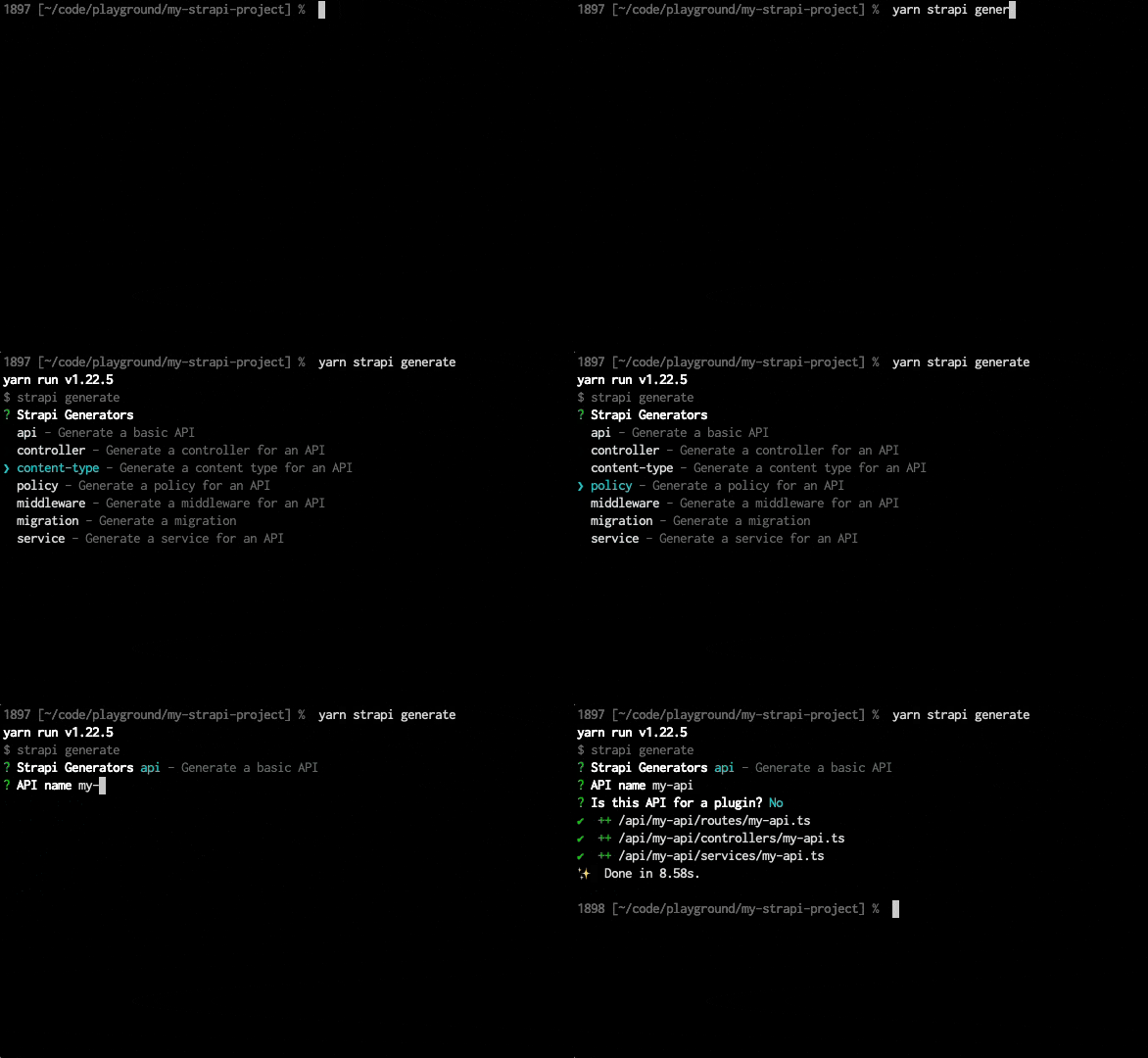
The generator detects TypeScript or JavaScript automatically and creates files with the correct extension (.ts or .js).
Generated files include commented examples. Singular and plural names must be different and use kebab-case format .
strapi openapi generate
Generate OpenAPI specifications for your Strapi application.
strapi openapi generate
| Option | Type | Default | Description |
|---|---|---|---|
--output | string | ./openapi-spec.json | Output file path for the generated specification |
Examples
- Yarn
- NPM
# Generate OpenAPI specification (default)
yarn strapi openapi generate

# Generate with custom output path
yarn strapi openapi generate --output ./docs/api-spec.json
# Generate OpenAPI specification (default)
npm run strapi openapi generate

# Generate with custom output path
npm run strapi openapi generate -- --output ./docs/api-spec.json
strapi templates:generate
Create a template from the current Strapi project.
strapi templates:generate <path>
-
strapi templates:generate <path>
Generates a Strapi template at<path>Example:
strapi templates:generate ../strapi-template-namewill copy the required files and folders to atemplatedirectory inside../strapi-template-name
strapi ts:generate-types
Generate TypeScript typings for the project schemas.
strapi ts:generate-types
- strapi ts:generate-types --debug
Generate typings with the debug mode enabled, displaying a detailed table of the generated schemas. - strapi ts:generate-types --silent or strapi ts:generate-types -s
Generate typings with the silent mode enabled, completely removing all the logs in the terminal. Cannot be combined withdebug - strapi ts:generate-types --out-dir <path> or strapi ts:generate-types -o <path>
Generate typings specifying the output directory in which the file will be created.
Strapi requires the project types to be generated in the types directory for them to work. The --out-dir option should not be used for most cases. However, it can be useful for cases such as generating a second copy to compare the difference between your existing and updated types after changing your content structure.
strapi routes:list
Display a list of all the available routes.
strapi routes:list
strapi policies:list
Display a list of all the registered policies.
strapi policies:list
strapi middlewares:list
Display a list of all the registered middlewares.
strapi middlewares:list
strapi content-types:list
Display a list of all the existing content-types.
strapi content-types:list
strapi hooks:list
Display a list of all the available hooks.
strapi hooks:list
strapi controllers:list
Display a list of all the registered controllers.
strapi controllers:list
strapi services:list
Display a list of all the registered services.
strapi services:list
strapi telemetry:disable
Disable data collection for the project (see Usage Information).
strapi telemetry:disable
strapi telemetry:enable
Re-enable data collection for the project after it was disabled (see Usage Information).
strapi telemetry:enable
strapi console
Start the server and evaluate commands in your application in real time.
strapi console
The console command compiles and loads your application, starts the server in the background, then opens a Node.js REPL. The REPL provides a prompt based on your application's name and gives access to all Strapi APIs through the global strapi object. Closing the REPL by pressing Ctrl-C twice gracefully stops the server.
Available helpers
The strapi object exposes the following getters and methods to interact with your application:
strapi.servicesandstrapi.service(uid)to use servicesstrapi.controllersandstrapi.controller(uid)to call controllersstrapi.contentTypesandstrapi.contentType(uid)to inspect content-typesstrapi.componentsto list componentsstrapi.policiesandstrapi.policy(name)for policiesstrapi.middlewaresandstrapi.middleware(name)for middlewaresstrapi.pluginsandstrapi.plugin(name)for pluginsstrapi.hooksandstrapi.hook(name)for hooksstrapi.apisandstrapi.api(name)for APIsstrapi.dbto directly query the database through the Query Engine API, for example as follows:
await strapi.db.query('api::article.article').findMany();
Use this environment to test code and inspect your project with direct access to all Strapi APIs.
Strapi uses a Node.js feature called AsyncLocalStorage to make the context available anywhere.
strapi version
Print the currently installed Strapi version. It will output the current globally installed version if this command is strapi is installed globally, or the current version of Strapi within a Strapi project if the command is run from a given folder containing a Strapi project.
strapi version
strapi help
List CLI commands.
strapi help